


1. Google Analytics

How Google Analytics Work

Get started with a Demo Account
1. Go to analytics.google.com
2. Create your account
3. Add the demo account
We will be using demo account data throughout this guide. Diving into the account and following along will help solidify what you learn. Each section will come with step-by-step instructions, so consider following along using the demo account before applying the learnings to your own website.
2. Google Search Console

Google Search Console is a web service by Google which allows webmasters to check indexing status and optimize visibility of their websites.
Until 20 May 2015, the service was called Google Webmaster Tools In January 2018, Google introduced a new version of the search console, with changes to the user interface. In September of 2019, old Search Console reports, including the home and dashboard pages, were removed.
Search Console offers tools and reports for the following actions:
1. Confirm that Google can find and crawl your site.
2. Fix indexing problems and request re-indexing of new or updated content.
3. View Google Search traffic data for your site: how often your site appears in Google Search, which search queries show your site, how often searchers click through for those queries, and more.
4. Receive alerts when Google encounters indexing, spam, or other issues on your site.
5. Show you which sites link to your website.
6. Troubleshoot issues for AMP, mobile usability, and other Search features.
Who should use Search Console?
Anyone with a website! From generalist to specialist, from newbie to advanced, Search Console can help you.
Business owners: Even if you won't be using Search Console yourself, you should be aware of it, become familiar with the basics of optimizing your site for search engines, and know what features are available in Google Search.
SEO specialists or marketers: As someone focused on online marketing, Search Console will help you monitor your website traffic, optimize your ranking, and make informed decisions about the appearance of your site's search results. You can use the information in Search Console to influence technical decisions for the website and do sophisticated marketing analysis in conjunction with other Google tools like Analytics, Google Trends, and Google Ads.
Site administrators: As a site admin, you care about the healthy operation of your site. Search Console lets you easily monitor and in some cases resolve server errors, site load issues, and security issues like hacking and malware. You can also use it to ensure any site maintenance or adjustments you make happen smoothly with respect to search performance.
Web developers: If you are creating the actual markup and/or code for your site, Search Console helps you monitor and resolve common issues with markup, such as errors in structured data.
Getting Started with Search Console
If you're ready to spend more time digging into Search Console's reports, learning how Google Search works, and redesigning your site, you can really analyze and customize your site's performance on Google Search. This track assumes that you are familiar with basic SEO practices and terms.
Understand how Google works with your site. There are a lot of things to know about how Google crawls and presents your site content. Start with this guide and learn what you need to know for your specific site.
Browse the list of key tools and reports in Search Console. This list shows the most important tools and reports in Search Console. Be sure you read the full documentation for a tool at least oncebefore you use it; otherwise you might misunderstand some subtle concepts in the tool, which will end up costing you more time and effort in the long run. You can find the full list of reports here.

Learn how impressions, clicks, and position are calculated in Search Console
Take advantage of the online help community, SEO office hours, twitter feed, blog.
3. SEMrush

Semrush is an all-in-one tool suite for improving online visibility and discovering marketing insights. Our tools and reports are able to help marketers that work in the following services: SEO, PPC, SMM, Keyword Research, Competitive Research, PR, Content Marketing, Marketing Insights, Campaign Management.
SEMrush is trusted by internet marketers all over the world. It is also used by a number of businesses, big and small. Major companies such as Philips, Forbes, PayPal, Hyatt, etc. use this tool. SEMrush has a massive database of over 46 million domains and 120 million keywords. It tracks so many things, such as the organic position of a domain or landing URL on Google’s SERPs (search engine results pages), copies of AdWords ads and their positions, CPC ads, competitor analysis and so much more.SEMrush helps with your content marketing, and that is the most important thing it does. But before I tell you more about how the SEO tool does it, let us talk a bit about content marketing and why it is so important.
Why use SEMrush?
1: More Effective Keyword Research
Your keyword strategy should be the bedrock of your content marketing plans. Keywords are how your customers will find you. What SEMrush does is to identify the keyword phrases that are likely to get you the most search traffic. SEMrush arms you with an amazing amount of SEO intelligence and help you with your keyword optimization and content strategy.
SEMrush helps you discover the different keyword variations that are associated with a particular root word. This will allow you to get a much better understanding of how people actually search online. So this takes the guess out of the game and helps you to identify user behavior much faster.
You can see the average number of searches for each keyword phrase per month on SEMrush. You will be able to see the competition for them, the average prices of a click on a PPC ad (AdWords), how many pages Google has for the search query, and the top-ranking sites on Google for any keyword search query.
2: Comparative Competitive Intelligence
Before analyzing how well your competitors are doing and what they are doing right, it is important that you should first arrive at a better understanding of what you are doing yourself. When you enter your web address on the SEMrush tool, you will see an overview screen, which tells you all you need to know about the traffic that you are getting, whether it is paid or organic. You can see if your traffic is getting better or worse, and how you are ranking on Google, on a real-time basis. SEMrush sends monthly SEO reports in PDF that leaves you in no doubt at all about your speed of progress and traffic growth over the last 12 to 24 months. Be sure to monitor your dashboard every week and keep a close watch on your progress.
3: Analyze and Strategize
There are tens of millions of blogs out there, many of which are not much different from your own. So, it is very important to watch out for the competition and find out exactly how they are doing. SEMrush allows you to get a deeper look at your competitors as well as at the keywords that they get most of their traffic for. Once you know the keywords that are used by your competitors with the greatest effect, the next step is to make them a part of your own content marketing efforts. Develop content that targets these search terms. SEMrush allows you to build a very successful content marketing strategy that is based on understanding your competition and targeting the traffic that they get for their best keywords.
SEMrush does more than just help you analyze your competitors. It allows you to analyze your competitor’s competitors. Basically, it finds out all websites that are ranking well for similar keywords and gives you an exact estimate of the amount of traffic received for the top 20 keywords used by each of these sites. This would give you a very good understanding of their traffic levels and formulate a strategy that takes this into consideration
4: Don't Lose Out on Your Existing Traffic
5: Find Better Advertising Opportunities

6: Find Advertising Opportunities Before Your Competitors Do
7: Create an Effective Guest Blogging Strategy

8: Handle Panda Updates Better

Getting Started with SEMrush
“I enjoy spending hours flipping through complex manuals,” said no one ever. That is why they created the SEMrush Academy. Think of it like Hogwarts, only you don’t need to be that special to get in. All you need to do is soak in the knowledge from their videos, occasionally take courses, and every once in a while challenge yourself with tests.Just like the best things in life, our courses, along with many marketing classes online, are free and will help you and your team make great things happen using SEMrush’s toolkits and reports. Their courses are taught by field experts who love what they do, so things never get boring. After each test you take, you will receive a SEMrush certificate that you can brag about to your colleagues, friends, and acquaintances, along with the peace of mind that comes with knowing you have what it takes to be a SEMrush rock star!
4. Google Keyword Planner

You can use this free tool to discover new keywords related to your business and see estimates of the searches they receive and the cost to target them.
Keyword Planner also provides another way to create Search campaigns that’s centered around in-depth keyword research.
Why Use Keyword Planner
It's important to keep in mind that while Keyword Planner can provide insights into keyword targeting, campaign performance depends on a variety of factors. For example, your bid, budget, product, and customer behavior in your industry can all influence the success of your campaigns.

Getting Started
How to Use Google Keyword Planner
Step 1: Set up a Google Ads Account
Step 2: Access Google Keyword Planner
Step 3: Try the Discover New Keywords Option
Step 4: Try the Get Search Volumes and Forecasts Option
Step 1: Set up a Google Ads Account
Before you start using Google Keyword Planner, you’ll need a Google account. If you don’t have one, creating an account only takes a few minutes.
Once you’ve created an account, go to the Google Ads home page and click Start Now. Now select your Google account to sign in.
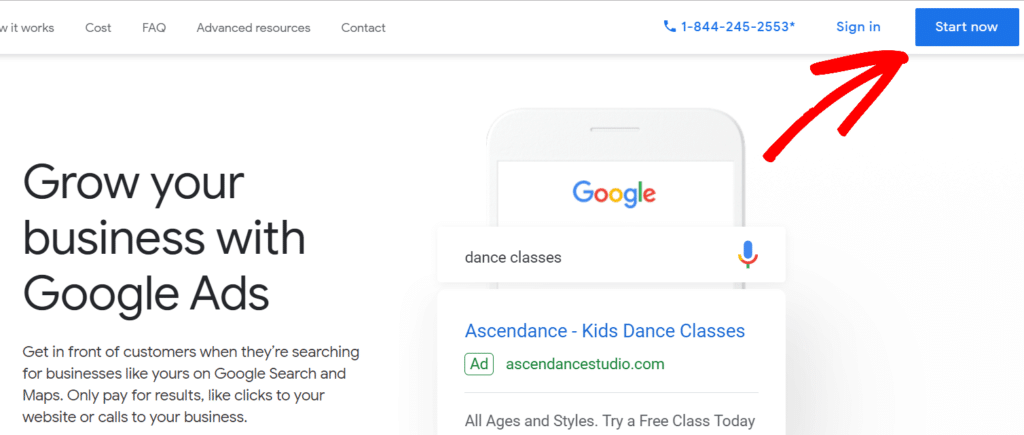
After signing in, Google Ads will ask you to create a campaign. Since we’re not here to spend any money on ads, you can skip this step by clicking Create an account without a campaign.

Next, enter your business information like billing country, time zone, and currency. Once you’ve entered the information, click Submit.

Congratulations, you’ve now created a Google Ads account. Now click Explore Your Account to go to the Google Ads panel.
Step 2: Access Google Keyword Planner
To open Google Keyword Planner, click Tools & Settings on the right top corner. And then from the drop-down menu, select Keyword Planner listed under Planning.

You’ll then see two options:
- Discover new keywords – This option gives you new keyword ideas that you can use to increase your website traffic.
- Get search volume and forecasts – You can use this option to find out the historical trend, search volume, and future forecast for a list of keywords.

We’ll be discussing both the options and how you can use them in our tutorial . Let’s start with discover new keywords.
Step 3: Try the Discover New Keywords Option
After selecting Discover new keywords, you’ll see two tabs: Start with Keywords and Start with a Website.
Start with Keywords
Under start with keywords, you can enter words (example: Google Analytics) or phrases (example: how to use Google Analytics) to find keywords. You can enter up to 10 keywords/phrases, and if you want, you can enter a domain to use as a filter. After entering the search terms, click Get Results.

Start with a Website
If you go with the start with a website option, you can enter a website URL to find keyword ideas. Google Keyword Planner uses the website you entered as a source and brings up search terms for you to use.
It even gives you a choice to search the entire website or a specific page. After entering the URL, click Get Results.

This option is perfect for looking at what your competitors are doing and finding ideas from their keywords. Just enter their website URL and see the keywords they’re working on.
Once you click the Get Results button, Google Keyword Planner will bring up results using the URL or the keywords you entered and suggest lots of new keyword ideas.
For example, when we entered Google Analytics as our search term, the tool showed us 674 keyword ideas available. It also suggests other keywords to broaden your search result.

For each keyword shown by Google Keyword Planner, you’ll see four metrics:
- Avg. monthly searches – This shows a range of how many searches the term receives every month, so you know which keywords get the most traffic.
- Competition – This represents how difficult is it to get an ad placement (usually described as low, medium, or high), but you also use it a basic metric to see the competition on the organic keyword, too.
- Top of page bid (low range) – This shows the lowest price advertisers would pay for a top of page bid.
- Tope of page bid (high range) – This number shows the highest price advertisers would pay for a top page bid.
You can also use additional filters to find new keywords based on location, language, search network, and time period.

Step 4: Try the Get Search Volumes and Forecasts Option
Now, let’s take a look at the other option for finding keywords we can choose: Get search volume and forecasts.
Just enter your keywords or phrases in the box, separated by commas or on the next line, and click Get Started.

For the keywords you enter, Google Keyword Planner will forecast the total number of clicks, impressions (how many times your ad would be displayed if you were running ads), overall cost, average position, and the cost-per-click (CPC) you could expect for the next 30 days.

It further breaks down each keyword forecast into individual clicks, impressions, cost, click-through-rate (CTR), and average CPC.

There are no keyword ideas in this report, as it’s meant to display the information for the specific keywords you entered. So, to make the most of this report, head over to the Historical Metrics tab, and you’ll see average monthly searches and competition for each keyword.

Google Keyword Planner is meant for advertisers, but it has a lot of SEO value. For starters, it’s 100% FREE! And it offers a good starting point to find keywords for your business.
You can look up individual search terms or enter a website address to see keywords. The bidding values and the competition level is great for understanding how lucrative the keywords are. It helps you select monetary keywords that can help you increase sales.
On the other hand, if you’re looking for detailed information about keywords and your competition, you might want to use some of the alternatives below.
How to Choose Keywords Using Google Keyword Planner
Choosing which keywords to focus on can be hard, but choosing the right ones can make or break your SEO strategy and your organic traffic numbers.
In general, there are a few best practices to use when choosing keywords:
- Choose a variety of keywords that are both more and less competitive. It’ll take you longer to rank for the more competitive ones, whereas you might be able to rank for the less competitive ones sooner. This gives you some balance between getting traffic sooner and later.
- Dive further into each keyword before targeting it with content. Use another keyword research tool and your own Google searches to expand your research. Look for keyword variations, “people also ask” questions, and other related keywords or topics that you might want to roll into your content.
- Don’t give up on keywords because they don’t have a huge search volume.Sure, you want to target keywords with some volume, but if it’s a solid topic for your site, cover it anyway. Organic traffic isn’t the only type of traffic! You can also create content that’s perfect for newsletters or social media but doesn’t have a huge organic search volume. At least, not yet!
5. Hotjar

Hotjar is a powerful tool that reveals the online behavior and voice of your users. By combining both Analysis and Feedback tools, Hotjar gives you the ‘big picture’ of how to improve your site's user experience and performance/conversion rates.
The Analysis tools allow you to measure and observe user behavior (see what users do) while the Feedback tools enable you to "hear" what your users have to say (the Voice of User). To improve your site's user experience and performance/conversion rates, check out a complete write-up on What is Hotjar? in their blog.
What is a heatmap?
A heat map (or heatmap) is a graphical representation of data where values are depicted by color. Heat maps make it easy to visualize complex data and understand it at a glance.The practice we now call heat maps is thought to have originated in the 19th century, where manual gray-scale shading was used to depict data patterns in matrices and tables.
The term heatmap was first trademarked in the early 1990s, when software designer Cormac Kinney created a tool to graphically display real-time financial market information. Nowadays, heatmaps can still be created by hand, using Excel spreadsheets, or with specialist software like Hotjar.
What is a website heat map?
Website heatmaps visualize the most popular (hot) and unpopular (cold) elements of a webpage using colors on a scale from red to blue.By aggregating user behavior, heatmaps facilitate data analysis and give an at-a-glance understanding of how people interact with an individual website page—what they click on, scroll through, or ignore—which helps identify trends and optimize for further engagement. Heat maps also usually display the average fold, which is the portion of the page people see on their screen without scrolling as soon as they land on it.
Why you should use Hotjar for your website
If you own or manage a website that you’re trying to improve, you’ll probably value any tool that:
1. Gives you clear and visual data points about what’s happening on your site
2. Helps you get some of the context about why people behave the way they do
3. Does the above quickly without requiring a steep learning curve
4. Is easy to get buy-in for and show the value of


Start creating your first heatmap by clicking on the ‘NEW HEATMAP’ button:
Give your heatmap a memorable name (like Homepage, Pricing Page, or Homepage v2 November) so you know exactly what page you are tracking:
Select how many pageviews you want to capture in your heatmap:[Note: the number of pageviews you can collect will depend on your plan. With the free plan, you get 1000 pageviews.]
Step 4: Select the Target Page(s)
Choose which page(s) you want the heatmap to capture (don’t know where to put your heatmap? Keep reading to the end of this chapter):Step 5: set your heatmaps live
Review your configuration, save it, and set your heatmap live: And that’s it!
